Scan to PDF

Visual workflow guide

How Scan to PDF organizes your document

Scan to PDF workspace reference

About this tool

Clear, private processing

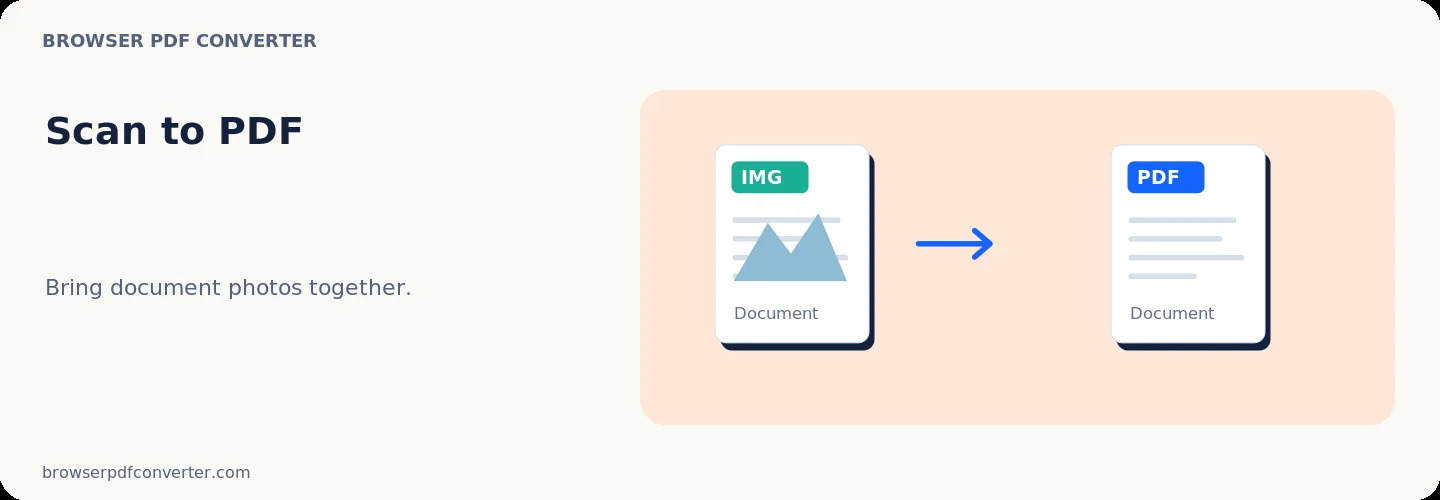
Turn images or scanned photos into a single PDF document. The workspace keeps previews, controls, and downloads together without confusing steps.

100% Private

Files stay on your device and are never uploaded to an external server.

Fast execution

Scan to PDF runs on your device with WebAssembly and modern browser APIs.

No account required

Use the tool without registration, subscriptions, or hidden queues.

Quick guide

3 simple steps

1

Add your file

Select or drop your file into Scan to PDF. Previews and processing stay in your browser.

2

Adjust settings

Customize pages, order, quality, or formatting before processing.

3

Process and download

Run the action and download the result directly to your device.

Practical guide

When and how to use Scan to PDF

Scan to PDF bundles scanned photos, receipts, and camera captures into a structured, multi-page PDF document. It provides a reliable way to prepare paperwork for official portals that require PDF submissions.

Each image is placed as an individual page with standard document dimensions for smooth viewing and printing.

Best used for

  • Assembling photographed receipts for expense reporting
  • Submitting scanned identification or tax documents
  • Creating clean multi-page documents from phone photos

Quality checklist

  • Crop desk edges and adjust lighting before building the PDF
  • Order pages logically before processing
  • Check orientation of all pages

Related actions

Similar PDF tools you might need

Browse all

FAQ

Frequently asked questions

Can I scan multiple receipts into one PDF?

Yes. Add all your scanned images and arrange them in sequence before exporting the single PDF.

Does this tool make scanned text searchable?

Scan to PDF creates image pages. Use OCR PDF if you need searchable and selectable text.

Is this PDF tool free to use?

Yes. Every tool here is free and works directly in your browser with no account required.

Are my files uploaded to a server?

No. Files are processed locally in your browser. Your data stays on your device.